
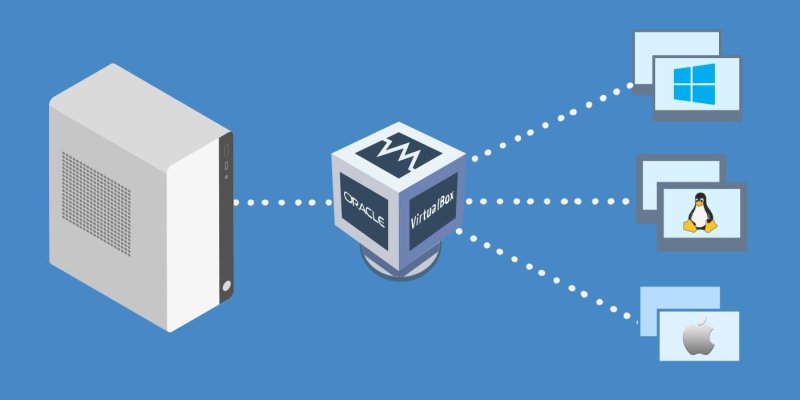
Virtualization is a technology that allows a single physical machine (host) to simulate multiple virtual machines (guests) operating as independent systems. This process is vital for modern computing because it maximizes resource efficiency, simplifies management, and enhances flexibility. VirtualBox is a free and open-source virtualization software developed by Oracle. It allows users to create and manage virtual machines on their computers, effectively running multiple operating systems simultaneously.
About virtualization
Types of Virtualization
-
Hardware Virtualization: This uses a hypervisor, a layer of software that manages the VMs. Hypervisors can be Type 1 (bare-metal) running directly on hardware, or Type 2 (hosted) running on an operating system. Hardware virtualization allows multiple OS instances to run on a single physical server without interference.
-
Software Virtualization: This enables applications to run in isolated environments, often using lightweight containers. Software virtualization can significantly enhance deployment speed and resource allocation.
-
Desktop Virtualization: This allows users to run a virtual desktop environment either locally or remotely. It separates the desktop environment from the physical device, providing users with access to their environments from various locations.
Benefits
-
Resource Optimization: By running multiple VMs on a single machine, virtualization reduces hardware costs and maximizes the utilization of resources such as CPU and memory.
-
Cost Savings: Organizations can significantly cut expenses by reducing the number of physical servers required. This also lowers maintenance and power consumption costs.
-
Flexibility and Scalability: VMs can be easily created, modified, or deleted, allowing organizations to adapt quickly to changing workloads and demands.
-
Isolation: Virtualization runs applications in isolated environments, preventing software conflicts and securing sensitive applications from vulnerabilities that may affect the host system.
About Oracle VirtualBox
Virtualbox is one of many solutions for bringing virtualization to life. It is a Type 2 Hypervisor so you need an already installed operating system on your physical machine.
Cross-Platform Compatibility
VirtualBox supports a wide range of host operating systems, including Windows, macOS, and Linux, allowing users from various backgrounds and needs to utilize virtualization technology. This flexibility is particularly beneficial for developers and testers who need to run different OS environments.
Use Cases
-
Software Development: Developers can test applications on various operating systems without needing dedicated hardware for each one.
-
Education and Training: VirtualBox provides a safe environment for students to learn about operating systems, networking, and other IT-related topics without risking damage to their primary systems.
Installation
Windows Installation:
-
Download the Installer: Go to the official VirtualBox website and download the installer for Windows.
-
Run the Installer: Double-click the downloaded file and follow the prompts to complete the installation process.
-
Initial Configuration: Set up the initial configuration options as prompted.
macOS Installation:
-
Download the DMG File: From the VirtualBox website, download the macOS version.
-
Mount the DMG: Open the downloaded DMG file.
-
Drag & Drop: Move the VirtualBox icon into the Applications folder.
Linux Installation:
Installing VirtualBox on Linux systems depends on the Linux distribution been used because different distributions implement different package managers.
-
On APT-based systems like Debian and Ubuntu it would be (using the Command Line Interface):
sudo apt-get install VirtualBox -
On RPM-based systems like Fedora, Red Hat and SUSE Linux:
Fedora:
sudo dnf install VirtualBoxRed Hat Enterprise Linux (RHEL):
sudo yum install VirtualBoxopenSUSE:
sudo zypper install VirtualBox
Initial Setup Tips
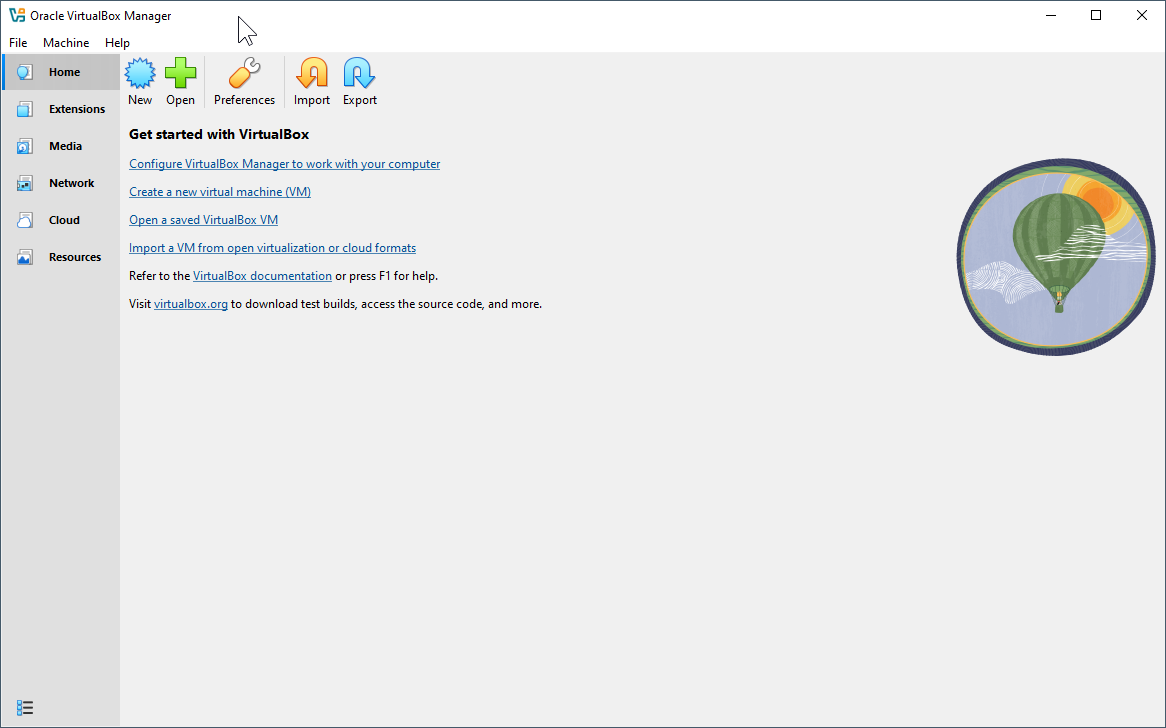
After installation, launch VirtualBox and consider configuring your preferences. Go to File > Preferences to adjust settings like default VM folder location and network configurations.
VirtualBox Extension Pack
The VirtualBox Extension Pack is an add-on package that enhances the functionality of Oracle VM VirtualBox. It includes several features that are not part of the base installation. Here are the key functionalities provided by the Extension Pack:
Key Features of the VirtualBox Extension Pack
-
USB 2.0 and USB 3.0 Support: The Extension Pack allows you to connect USB devices from the host machine to the virtual machines. This is particularly important for devices like USB flash drives, printers, and external storage.
-
VirtualBox Remote Desktop Protocol (VRDP): This feature enables you to access and control virtual machines remotely using RDP. It allows users to manage VMs over a network connection seamlessly.
-
Host Webcam Passthrough: You can use your host machine's webcam in the guest OS, which is beneficial for applications that require camera access within the VM.
-
Virtual Machine Encryption: The Extension Pack enables the encryption of virtual machines, adding an additional layer of security by protecting VM data with passwords.
-
PXE Boot for Intel NICs: This feature allows network booting of virtual machines using Intel Network Interface Cards in the VM.
Installation of the Extension Pack
To install the Extension Pack, follow these steps:
-
Download the Extension Pack from the VirtualBox download page.
-
Open VirtualBox and go to File > Preferences > Extensions.
-
Click on the Add New Package icon and select the downloaded Extension Pack file.
-
Follow the prompts to complete the installation.
Importance
The Extension Pack is essential for users who need enhanced capabilities in their virtual environments. Whether you're developing software, testing applications, or running specific hardware setups, these additional features can significantly improve your workflow. Install it right after VirtualBox installation is complete.
Creating a Virtual Machine
Detailed Instructions
-
Launch VirtualBox: Start the application and click on the “New” button to initiate the VM setup process.
-
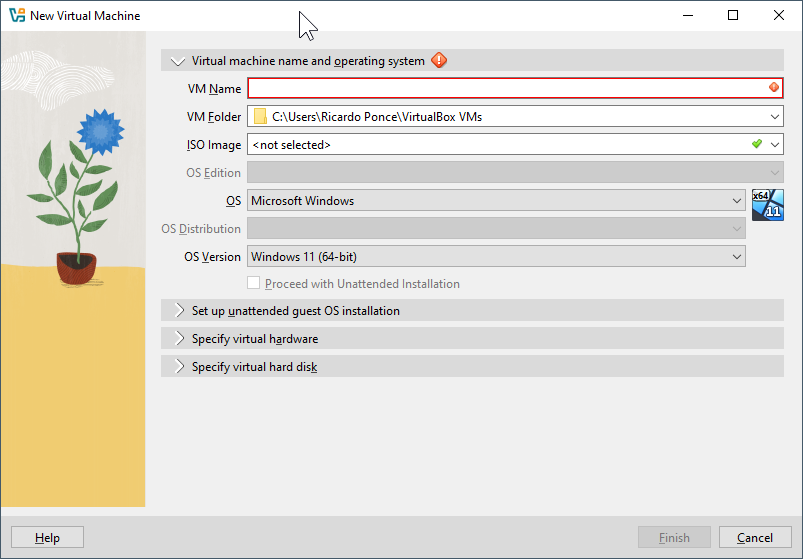
Name Your VM: Enter a descriptive name for the VM and select the type of operating system you plan to install.
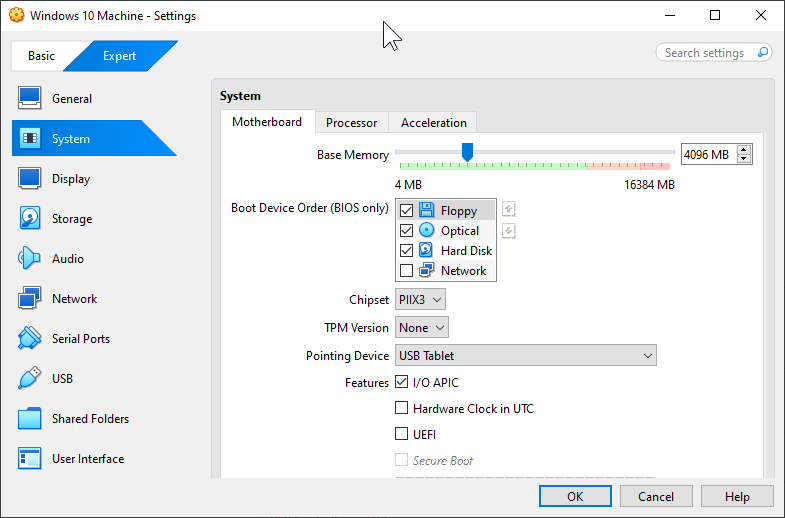
- Assign Memory: Allocate memory based on the recommended requirements of the OS you intend to run. Typically, a minimum of 2 GB is suggested for modern operating systems but allocate more for a better experience.
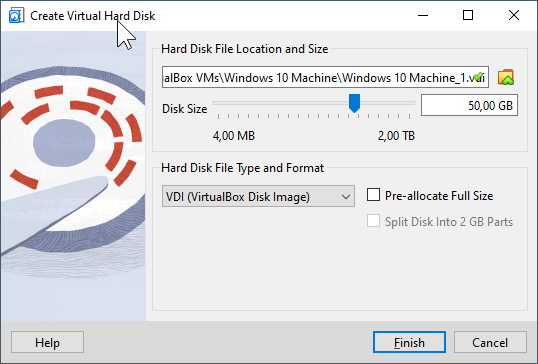
- Create a Virtual Hard Disk:
-
Choose the option to create a virtual hard disk now.
-
Select the disk file type (VDI, VHD, VMDK - each with its distinct advantages).
-
Choose whether you want the storage to be dynamically allocated or fixed size.
-
Set the disk size (20 GB is a good standard for many installations).
Settings Discussion
-
Memory Allocation: Proper memory allocation is crucial for the smooth operation of both the virtual and host systems.
-
Storage Options: VDI (VirtualBox Disk Image) is the default and best for VirtualBox. VHD and VMDK are used in specific contexts or other virtualization platforms.
-
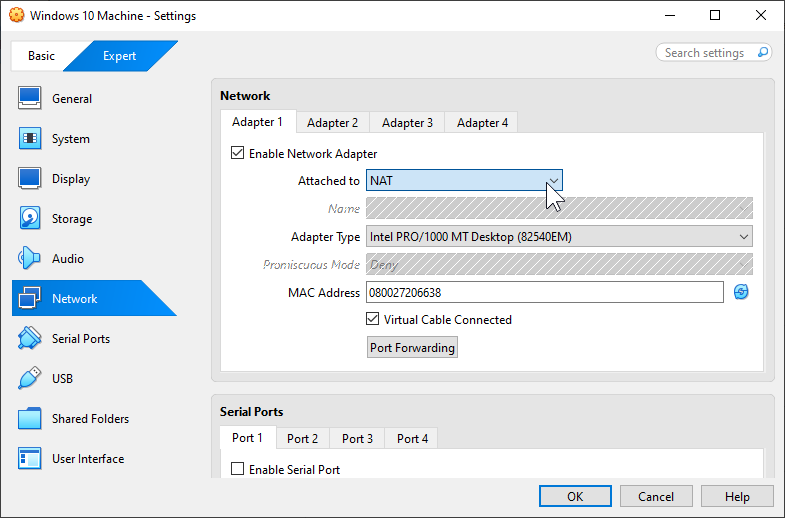
Network Configuration: Understand the difference, NAT allows the VM to access external networks through the host, while Bridged Adapter connects directly to the physical network, acting as an independent machine.
Installing an Operating System on a Virtual Machine
Just as we would install an operating system on a physical computer using a CD/DVD or a USB drive, we will need an installation source, but in this case, an ISO image file. You can find them available on their respective websites. Do not download ISO images from untrusted locations. You may end up installing an infected or hacked system. Use the download pages from distributors' official websites.
After getting the ISO file:
-
In VirtualBox, select your VM and go to Settings > Storage. Click on the empty disk under "Storage Devices" and select the ISO image file for your system of preference.
-
Start the VM and proceed through the familiar installation prompts.
Optimization Tip: After installation, install VirtualBox Guest Additions to improve performance, especially concerning graphics and mouse integration and disable 3D graphics acceleration if not needed, as this can sometimes lead to performance issues.
VirtualBox Features
Key Features Overview
-
Snapshots: This feature allows users to save the current state of a VM, enabling easy rollbacks if something goes wrong. You can have multiple snapshots for different stages of configuration.
-
Shared Folders: Configure shared folders to access files on your host machine directly from the VM, making file transfer simple.
-
USB Device Support: Use USB devices directly with your VM, which is essential for testing hardware-based applications or devices.
-
Network Configurations: Fine-tune network settings based on your needs. For instance, NAT allows the VM to use the host’s IP address, while Bridged Mode allows the VM to connect to the network directly.
Use Cases for VirtualBox
Practical Applications
-
Software Testing: Developers can test applications under various OS conditions by spinning up VMs for each requirement, without affecting the host environment.
-
Legacy Applications: If you have older software written for previous OS versions, use VirtualBox to run them in an isolated, compatible environment.
-
Learning and Training: It provides an excellent platform for students to learn about different operating systems, networking concepts, or software development.
-
Isolating Potentially Harmful Software: Running suspicious applications in a VM prevents any adverse effects on the primary system.
Advanced Configuration Options
Advanced Settings Overview
-
VirtualBox Extensions (Already explained): Enhance functionality by installing the VirtualBox Extension Pack. This pack adds support for USB 2.0 and 3.0 devices, remote desktop protocols (VRDP), and more. To install the Extension Pack, download it from the VirtualBox download page and double-click the file to open it with VirtualBox.
-
Command Line Configurations: The command-line tool
VBoxManageallows you to automate various tasks without the GUI. This can be beneficial for advanced users who prefer a more scriptable interface. For example, to start a VM in headless mode, you can use:VBoxManage startvm "Your\_VM\_Name" --type headless -
Network Configurations: For specific network setups, consider using the Host-only Adapter or Internal Networking. Host-only Adapter allows the VM to communicate with the host without accessing external networks. Internal Networking enables communication between VMs on the same internal network, which is useful for testing server applications.
Troubleshooting Common Issues
Common Issues
VM Won't Start:
-
Possible Causes: Insufficient system resources (RAM, CPU). Check that your host machine has enough allocated for the VM.
-
Solutions: Increase allocated resources through VirtualBox settings or close unnecessary applications on the host.
Performance Issues:
-
Factors to Consider: Insufficient RAM, insufficient disk space, or an overloaded host machine can significantly hinder performance.
-
Monitoring System Usage: Use task managers on your host OS to monitor CPU and memory usage and make adjustments as needed.
Network Connection Problems:
-
Checking Settings: Ensure that the network settings on your VM are correctly configured. If using Bridged mode, make sure your host network is operational.
-
Testing: Use tools like
pingto test connectivity within the VM or between the VM and the host.
Benefits of Using VirtualBox
Advantages of VirtualBox
-
Free and Open-Source: VirtualBox is accessible without licensing costs, making it ideal for both individuals and organizations.
-
User-Friendly Interface: Its intuitive graphical user interface makes managing VMs straightforward, even for those with limited technical expertise.
-
Robust Community Support: VirtualBox has an active community that provides forums, documentation, and guides for troubleshooting and enhancing the user experience.
Potential Drawbacks
While VirtualBox is an excellent solution, it may not offer the same performance levels as some enterprise-grade virtualization software. For high-demand applications or production environments, evaluating alternatives might be necessary. However, for many users, the cost-effectiveness and flexibility of VirtualBox make it a preferred choice.
Conclusion
VirtualBox serves as a powerful and accessible tool in the realm of virtualization. It offers diverse applications capable of supporting various domains, making it a valuable asset for developers, educators, and businesses that want to leverage virtualization technology. Take the time to explore the robust features and capabilities of VirtualBox. Whether your needs lie in testing software, training, or understanding multiple operating systems, this tool can effectively meet your requirements.